Menu Badges Reach the Customer App STAGING
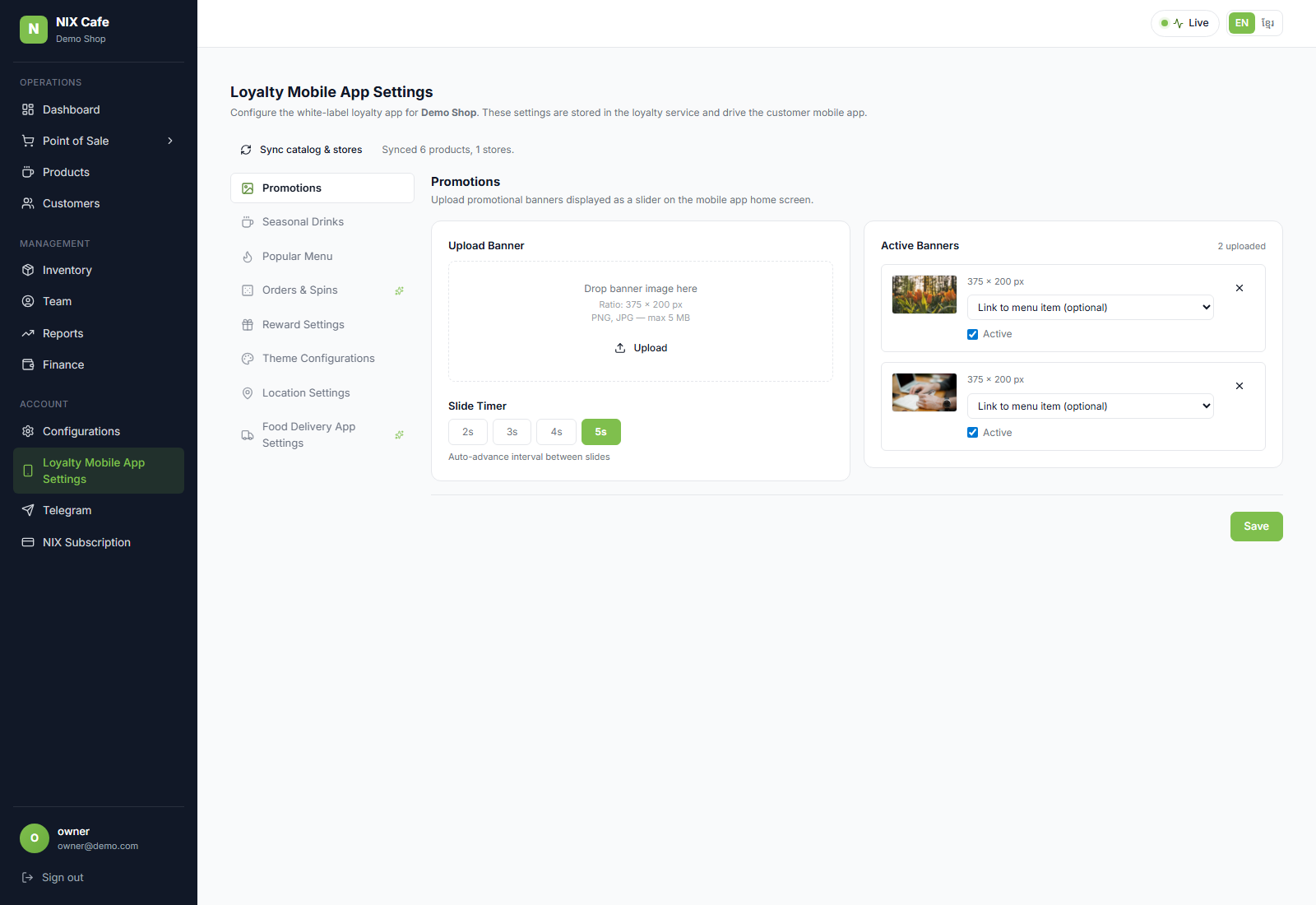
"Menu badges — Choose up to 2 badges to highlight this product on the menu."
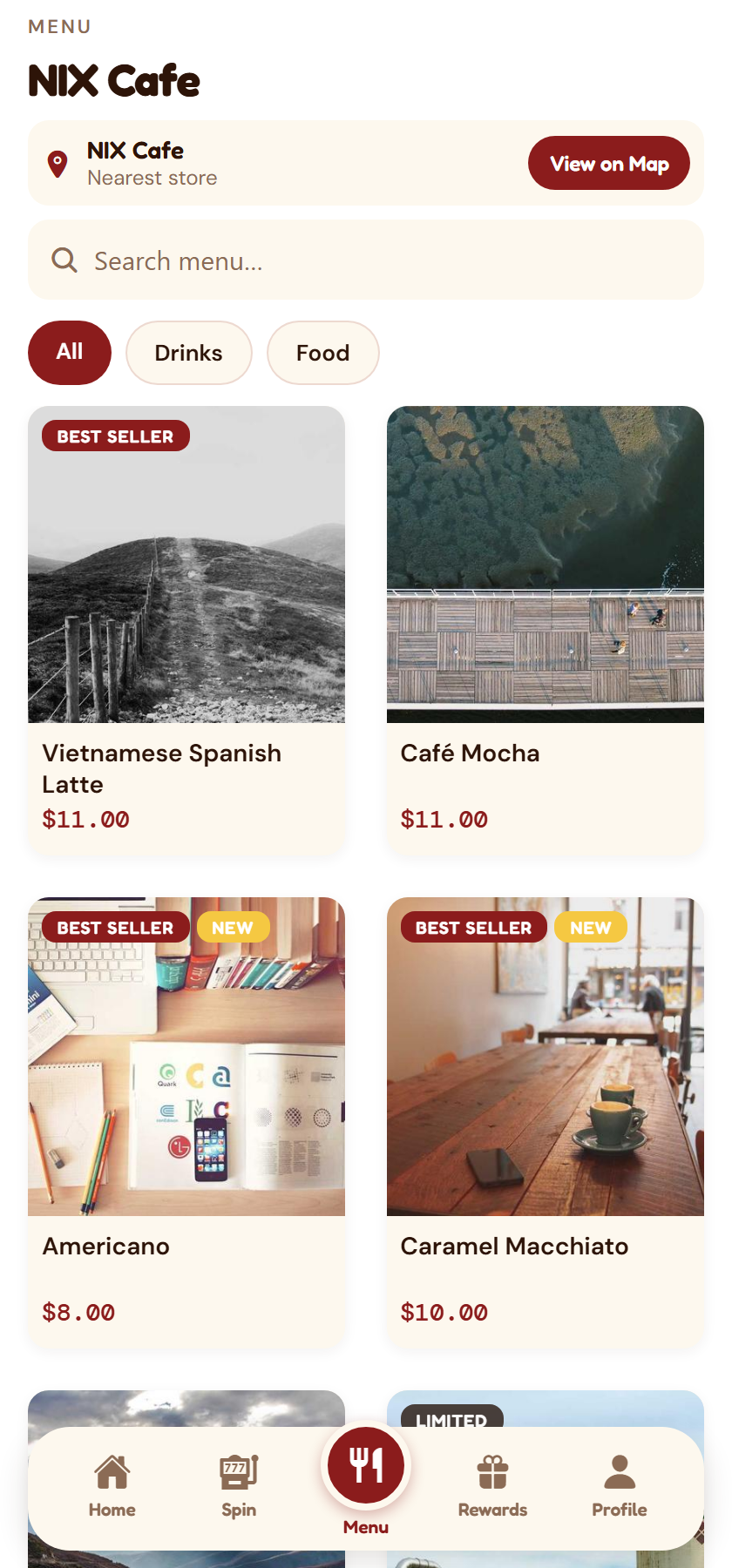
The badges a merchant picks on a product now travel all the way to the customer app's menu. This is the last part of that feature — the badge picker shipped earlier, but nothing carried the choice outward, and the app was still showing a placeholder.
What the app used to show
The menu card carried a “Best Deal” badge on whichever product happened to be second in the list. It was a placeholder standing in for a real field, so it followed the layout rather than the product — searching or switching category moved it to a different item. That is gone; a card is now badged only if that product was actually badged in the back office.
How a badge travels
Badges are set on the product, so every size or variant of the same product shows the same badges — a badge marks the thing a customer sees on the menu, not one variant of it. The catalog sync carries them across, and the app shows at most two per card, side by side.
What the app receives
Every menu item now carries a badges list, empty when the product has none:
{
  "productId": "e88a0169-…",
  "name": "Cappuccino",
  "priceUsd": "3.50",
  "badges": ["best_seller", "new"]
}
Unknown badges are dropped, not shown. The loyalty service re-checks every badge against its own list before storing it, so a bad or future value can never reach a customer's phone as a blank chip — and the two-badge limit is enforced there as well as in the back office. Clearing a badge on a product clears it in the app on the next sync, which is checked too.
Checks
| Suite | Result |
|---|---|
| Back-office catalog payload (local) | 4/4 |
| Customer app menu rendering (local, incl. a deliberate control) | 21/21 |
| End-to-end on staging: back office → sync → loyalty service → menu API | 5/5 |
| Staging smoke regression | 5/5 |
The staging run drives the real Sync button on the deployed back office and then reads the live menu API, so all three services are exercised as they actually run. The app check includes a control that fails if the old placeholder ever came back.
Verified on Demo (staging). Test data was created for these screenshots and removed afterwards.